Add corner marks to WordPress buttons
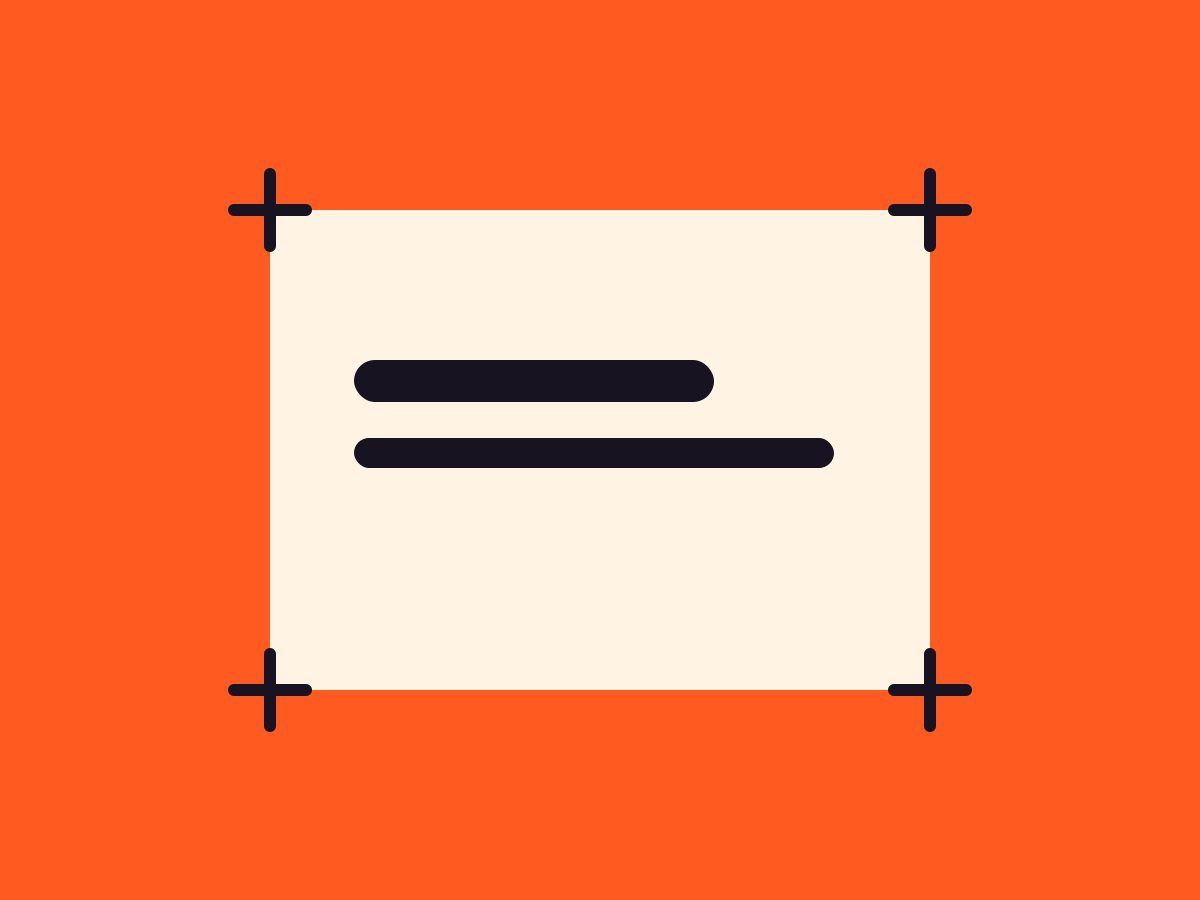
Small L-shaped marks sit at a button’s corners, as ticks, brackets or a full frame. On hover they can slide in toward the label or out.
Type
An upgrade to the Button block
Find it
Button settings, Corner marks
Phones
A press nudges the marks in, even on touch
Speed
A fixed 2px stroke, nothing heavy

Buttons in brackets.
This is the real Button corner marks setting, running on this page.
Settings Variant Bracket and Tick Hover animation Converge and Push Marks as frame
The settings worth knowing.
Ticks or brackets, which corners, and how they move.
Variant
Ticks or brackets
Tick or Bracket, which has arms 1.8 times longer.
Marks as frame
A full frame
Extends the arms into a closed rectangle.
Inset (px)
In or out
From minus 16 to 16px. Negative values overhang outside the button.
Mark colour
Their color
Any palette color, or the surrounding text color if left empty.
Three steps. No new tool.
Fair questions.

Make your next site beautiful.
GrinBot designs and builds it for you. Join the waitlist for the launch price.
- Studio-quality design
- Built for speed
- Pay once, no subscription
We’ll email you about the launch. Unsubscribe any time. Privacy policy